You can watch most content on Twitch without creating an account. Just open www.twitch.tv in any browser on a device with an internet connection. To unlock the full experience, including broadcasting your own gameplay, you need a membership. Signing up gives you a dedicated user page, known as a channel. The URL for this page follows the format www.twitch.tv/username.
Understanding the channel layout
Each channel page features a profile picture (if the user has set one), an editable channel name, and the username above the main video window. This window displays whatever the broadcaster is currently streaming. If the user is not live, the video window typically shows “OFFLINE,” unless they have configured specific content to play in their absence.
Below the video, you will find buttons to follow the channel, bookmark or share the video, and report or message the user. The interface also displays real-time stats, such as the current viewer count, total views, and follower numbers. A navigation bar sits on the left, while a chat window occupies the right side. This layout assumes you haven’t expanded the video to full screen, which would obscure these elements.
Why the chat matters
The chat window is a running stream of messages from other viewers. You can participate directly in this conversation. Many broadcasters read these messages out loud, creating a real-time feedback loop. Some even play matches with viewers live. You can also send private messages to other users.
This level of interaction, between broadcasters and viewers and among viewers themselves, makes Twitch a social experience rather than just a passive video platform.
Managing your account settings
Once logged in, click your username in the top right corner of the main page. You can select “Channel,” “Profile,” “Dashboard,” “Messages,” or “Settings,” or log out. All options except logging out lead to different parts of your account. From any of these pages, the left-hand navigation bar remains visible. It links to standard sections plus “Following” (channels you follow) and “Subscriptions” (channels where you have paid subscriptions). On smaller screens, these links may appear as icons.
The “Settings” section allows you to customize your profile information. You can choose what displays when you are not live, toggle the “Archive Broadcasts” option, and manage security and notification settings. You can also view and control links to third-party sites and software.
Finding games and saving clips
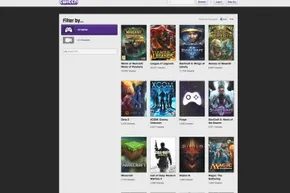
Twitch makes it easy to browse and search by channel or game title. You can find live streams or archived videos. Note that Twitch only archives game broadcast videos if the channel owner has selected “Archive Broadcasts” in their settings. These videos are deleted after a few days to save space unless the owner marks a specific video as “Save Forever.” If you are watching someone else’s channel, you can create a bookmark. This generates a link to the specific spot you marked, provided the video is still saved.
Devices you can use to watch Twitch
There are several ways to access Twitch and view its content. You can use the site on a computer, gaming console, or mobile device via web browsers or dedicated apps. Twitch offers apps for Android and iOS devices. These allow you to browse, search for channels, watch live streams, and participate in chat away from your computer. Apps are also available for some gaming consoles, though features vary. Some apps support broadcasting and chatting, while others are limited to browsing and viewing.
Devices that can at least watch Twitch content include:
- PlayStation 4
- Xbox One
- Xbox 360
- Ouya
- Nvidia Shield
- Laptops and desktops
- Tablets and smart phones
If you are ready to move from watching to broadcasting your own gameplay, the next step is setting up your own stream.